
Your security operations team works in Microsoft Sentinel. Connect it once from the hub, and every sign-in, admin change and device event in your organization arrives there in order, in Microsoft’s own normalized tables, ready for analytics rules, workbooks and hunting queries in the Defender portal.
There is nothing to install and no secret to copy. You sign in with Microsoft, choose a workspace, and Trustaige creates what Sentinel needs in your Azure, then proves the first event arrived before the connection is saved.
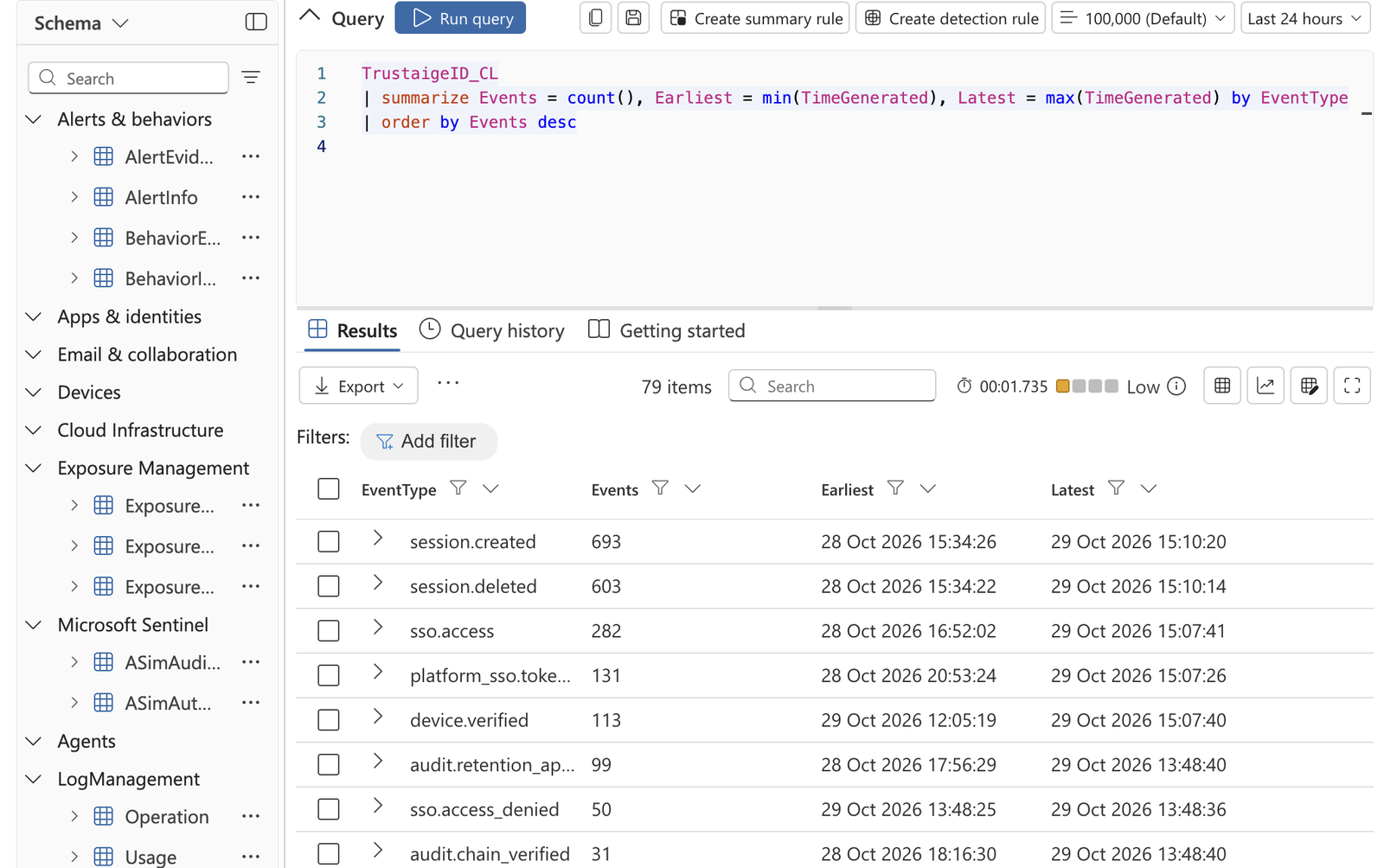
Trustaige ID events in Microsoft Defender Advanced hunting.
- Administrator to Microsoft Entra: signs in and approves Trustaige once
- Microsoft Entra to Trustaige: returns with access to your Azure
- Trustaige to Azure: creates the table, rule and role
- Trustaige to Azure: sends a test event
- Azure to Trustaige: the event arrived
- Trustaige to Azure: audit events, in order, from then on
Before you start
- A Log Analytics workspace with Microsoft Sentinel turned on. The hub offers only workspaces where Sentinel is on.
- Owner of the resource group that holds the workspace, or Contributor together with User Access Administrator. Setup creates resources there and gives Trustaige’s app one narrow role on one of them, and only those roles can do both. If your account lacks them, the hub says so and you can send the setup to an Azure administrator instead (see Send setup to an Azure administrator).
- Approval of Trustaige’s app in Microsoft Entra. If your organization requires an administrator to approve apps, a Global Administrator, Cloud Application Administrator or Application Administrator signs in for the first connection.
- Permission in Trustaige to manage webhooks and integrations.
Connect
In the hub, open Audit log, then the SIEM tab, and choose Connect on Microsoft Sentinel. The wizard has seven steps.
-
Sign in with Microsoft. Use the account that manages your Sentinel workspace. Microsoft asks you to approve Trustaige’s app the first time.
-
Workspace. Choose the subscription, then the workspace. The hub checks your rights in that resource group as soon as you choose it.
If your subscription is not in the list, choose Subscription not listed? Enter its ID and paste the ID from Subscriptions in the Azure portal. The hub opens that subscription directly.
-
What to send.
- Security events: sign-ins, admin changes, device compliance and recovery, without routine operational events.
- Everything: every event in your audit log.
The hub estimates the daily volume of each from your organization’s last 30 days. Microsoft bills ingestion by volume, at your workspace’s own rate. Under Also send what already happened, choose From now on or the last 7, 14 or 30 days.
-
Review. Shows the workspace, what will be created in it and what will be sent.
-
Create. Trustaige creates, in the workspace’s resource group:
- the table
TrustaigeID_CLin the workspace; - a data collection rule named
trustaige-id-…that accepts Trustaige’s events; - the Monitoring Metrics Publisher role for Trustaige’s app, on that rule alone.
- the table
-
Verify delivery. Trustaige sends a test event and waits until it can read it back from the workspace. A new table can take several minutes to show its first row. You can finish now: Trustaige continues checking, and the destination shows as Delivering on the SIEM tab once the event arrives.
-
Done. The destination appears under Connected destinations.
What arrives
Each event lands in the table that fits it. Rules and workbooks written for Microsoft’s normalized schemas work on Trustaige’s events without changes.
| Table | What it holds |
|---|---|
ASimAuthenticationEventLogs | Sign-ins and sign-outs, failed sign-ins and step-up (Logon, Logoff, Elevate), in Microsoft’s authentication schema |
ASimAuditEventLogs | Admin and configuration changes (Create, Set, Delete, Enable, Disable, Execute), in Microsoft’s audit schema |
TrustaigeID_CL | Every event you send, with Trustaige’s full detail: event type and title, actor, resource, app, location, the changes made, and the event’s position in your organization’s tamper-evident audit chain (ChainSeq, ChainHash) |
Rows in Microsoft’s tables carry EventVendor Trustaige and EventProduct
Trustaige ID.
Events are sent in the order they happened. If Azure is busy or unreachable, Trustaige waits as Azure asks, retries, and picks up where it stopped.
Check it in Sentinel
In the Defender portal, open Investigation & response, Hunting, Advanced hunting, and select the workspace. Or open the workspace’s Logs in the Azure portal and choose KQL mode, which accepts a pasted query. Set the time range to cover what you sent.
What arrived, by event type:
TrustaigeID_CL
| summarize Events = count(), Earliest = min(TimeGenerated), Latest = max(TimeGenerated) by EventType
| order by Events desc
Trustaige’s rows in Microsoft’s normalized tables:
union ASimAuthenticationEventLogs, ASimAuditEventLogs
| where EventVendor == "Trustaige"
| summarize count() by Type, EventType, EventResult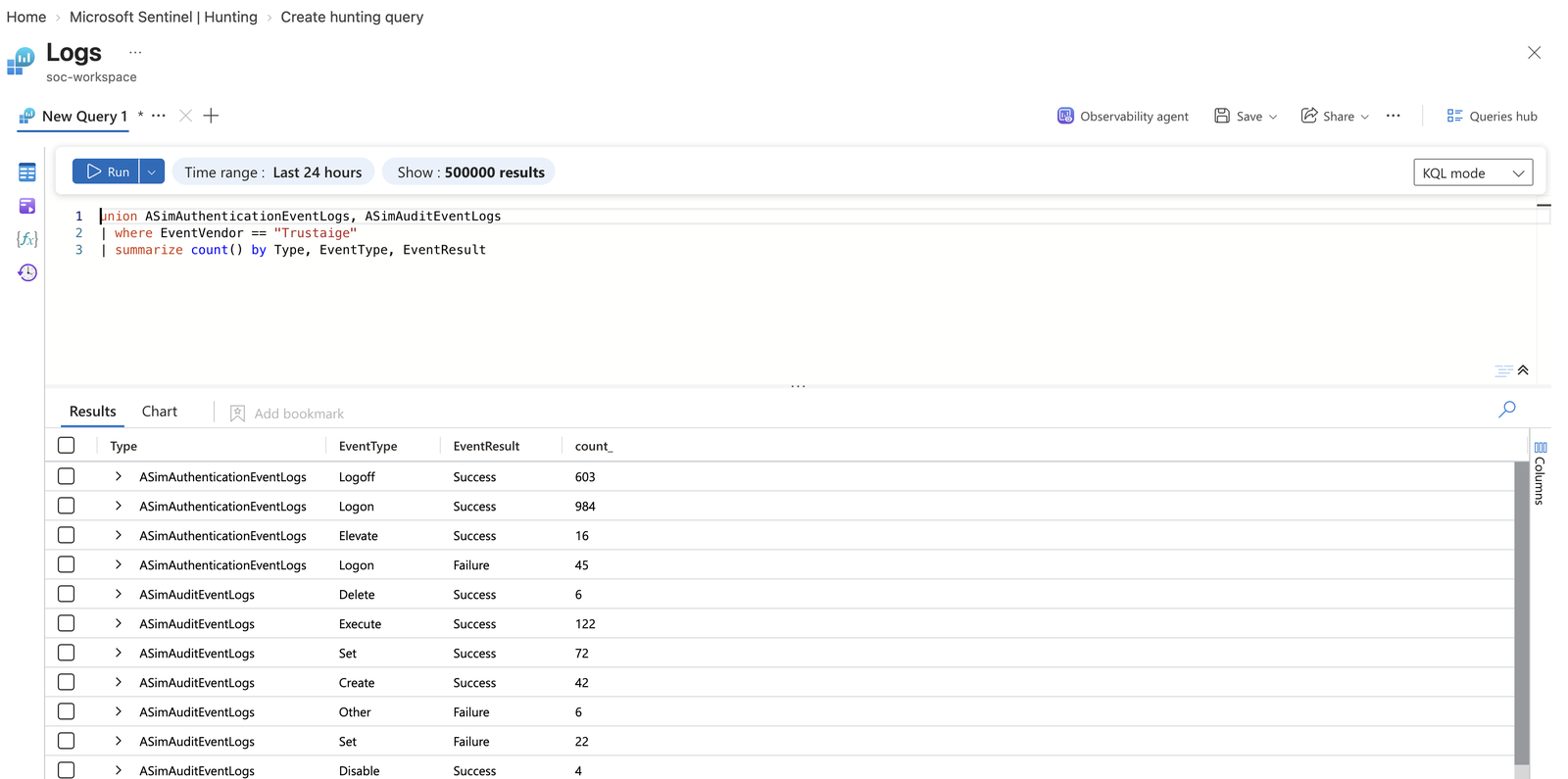
The query above in a workspace’s Logs, in KQL mode.
TrustaigeID_CL
| summarize Events = count(), Earliest = min(TimeGenerated), Latest = max(TimeGenerated) by EventType
| order by Events desc
union ASimAuthenticationEventLogs, ASimAuditEventLogs
| where EventVendor == "Trustaige"
| summarize count() by Type, EventType, EventResultManage the connection
Choose the destination under Connected destinations on the SIEM tab. Its page shows its health (Delivering, Catching up, Throttled, Retrying, Paused or Waiting for approval), how many events it is behind, and the last batch sent.
- Pause delivery holds events in the audit log. Resume delivery sends them, in order, starting with what was held.
- Replay (on the Manage tab) sends events again from a date you choose. The workspace then holds those rows twice, and Microsoft bills their ingestion again.
- Repair permissions (on the Manage tab) restores the table, the rule and Trustaige’s role after something in Azure changed, then resumes once a test event is accepted.
- Disconnect… removes the data collection rule and the role Trustaige created, after you sign in with Microsoft. The tables, and every row already delivered, stay in your workspace. If you cannot sign in to that Azure, choose Stop delivery without signing in to Azure; the hub then lists what remains for you to delete.
A workspace can be connected once per organization. To send to a second workspace, choose Connect another workspace on the Microsoft Sentinel card.
Send setup to an Azure administrator
If you cannot grant roles in that Azure yourself, choose Send this to an Azure administrator on the first step. The hub issues a link that works once and expires in 72 hours. The person who opens it finishes setup in their own Azure without a Trustaige account. Send it only to that person: anyone holding the link can finish the setup.
For service providers
A service provider connecting Sentinel for a customer, on a delegated session, uses the same wizard. The destination waits for the customer: delivery starts once one of the customer’s superadmins approves it under Service providers, after seeing the Microsoft Entra directory, workspace, region, rule and what will be sent.
Troubleshooting
“… can’t see any Azure subscriptions”
Azure listed no subscriptions for the account you signed in with. Enter the subscription’s ID in the box below the message: copy it from Subscriptions in the Azure portal. If the hub then says the account can’t open that subscription, sign in with an account that has a role on it.
“You need Owner, or User Access Administrator, on the resource group …”
Your account can’t give Trustaige’s app its role. Ask an Azure administrator with one of those roles to give it to you, or send them the setup (see Send setup to an Azure administrator).
“An administrator in your Microsoft Entra tenant needs to approve Trustaige once”
Your organization requires administrator approval for apps. A Global Administrator, Cloud Application Administrator or Application Administrator signs in at the first step and approves Trustaige’s app.
“This workspace is already connected”
Your organization already delivers to that workspace. Open it under Connected destinations, or choose another workspace.
The test event was accepted, and Verify delivery keeps waiting
A new table can take several minutes to show its first row. Choose Finish now; the destination shows as Delivering once the event arrives.
The destination shows Paused, with a reason
Azure refused Trustaige’s writes, usually because the role on the data collection rule was removed or the rule was deleted. Choose Repair permissions. Events are held in the audit log while it is paused and are sent once it resumes.